CS2 Audio Calibration: Boost Footstep Clarity by 25%
Achieving optimal audio calibration in Counter-Strike 2 is crucial for competitive play, allowing players to significantly boost footstep audio clarity by 25% through precise in-game and system adjustments.
In the high-stakes world of Counter-Strike 2, where every millisecond and every sound matters, mastering your audio settings can be the ultimate game-changer. This guide will walk you through a step-by-step audio calibration to boost footstep audio clarity by 25% in Counter-Strike 2, helping you gain an undeniable competitive edge by hearing your opponents before they even see you.
Understanding the Importance of Audio in CS2
Audio in Counter-Strike 2 is far more than just background noise; it is a critical source of tactical information. The ability to accurately pinpoint enemy positions based on their footsteps, weapon reloads, or utility usage can dictate the outcome of rounds and even entire matches. Many players often overlook the profound impact of finely tuned audio settings, relying on default configurations that might not be optimized for competitive play.
Poor audio clarity can lead to frustrating moments where you are caught off guard, simply because a crucial sound cue was muffled or indistinguishable from other game sounds. Conversely, a well-calibrated audio setup can transform your situational awareness, allowing you to anticipate enemy movements, hold angles more effectively, and make more informed decisions under pressure. This foundational understanding sets the stage for why investing time in audio calibration is not just a preference, but a strategic imperative for serious CS2 players.
The role of sound spatialization
Sound spatialization, particularly through technologies like HRTF (Head-Related Transfer Function), is pivotal in CS2. It allows players to perceive sounds as coming from specific directions and distances, mimicking real-world hearing. Properly configured HRTF can make the difference between hearing a footstep generally to your left and knowing precisely that an enemy is pushing from connector on Mirage.
- Directional Accuracy: HRTF helps in accurately locating enemy positions based on sound.
- Distance Perception: It aids in judging how close an enemy is, crucial for timing pushes or retreats.
- Environmental Acoustics: Understanding how sounds interact with different surfaces can provide additional cues.
Ultimately, a deep dive into your audio settings will reveal opportunities to enhance these crucial elements, leading to a noticeable improvement in your ability to react swiftly and strategically. This section underscores that sound is not just an auditory experience but a tactical weapon in the hands of a prepared player.
In conclusion, recognizing audio as a core component of competitive success in CS2 is the first step towards elevating your gameplay. The nuanced details of sound design, from footsteps to grenade bounces, are all intended to provide information. Our goal is to ensure you receive that information as clearly and precisely as possible.
Initial System-Level Audio Checks and Settings
Before diving into in-game settings, it is essential to ensure your operating system's audio configuration is optimal. Windows, by default, often includes enhancements that can inadvertently degrade competitive gaming audio. Disabling these can be a quick win for clarity.
Start by accessing your sound settings. Right-click the speaker icon in your system tray and select 'Sound Settings' or 'Sound Control Panel.' Navigate to your primary playback device (usually your headset or speakers) and open its properties. This is where many crucial system-level adjustments can be made, laying the groundwork for superior in-game sound.

Disabling Windows sound enhancements
Windows offers various 'enhancements' like virtual surround sound, bass boost, or loudness equalization. While these might sound appealing for general media consumption, they can introduce latency, distort crucial sound cues, and ultimately hinder your ability to accurately hear footsteps in CS2. It is highly recommended to disable all of them.
To do this, go to the 'Enhancements' tab in your playback device's properties. Check the box that says 'Disable all enhancements' or manually uncheck each individual enhancement. Apply these changes and restart your game or even your PC to ensure they take full effect. This step alone can lead to a significant improvement in raw audio fidelity.
Configuring audio format and sample rate
The audio format and sample rate determine the quality and precision of the sound output. For competitive gaming, a higher sample rate and bit depth generally provide a more detailed audio experience, allowing finer distinctions between sounds. While the human ear might not perceive every increment, the system processes more data, potentially leading to clearer sound reproduction.
- Sample Rate: Set to 44100 Hz or 48000 Hz. Higher rates like 96000 Hz are often unnecessary and can sometimes introduce issues with older hardware or software.
- Bit Depth: Choose 24-bit if available, otherwise 16-bit is standard.
- Exclusive Mode: Some applications might request exclusive control of your audio device; ensure this is handled appropriately by your system, though for CS2, direct control isn't typically an issue.
Ensuring your system is outputting audio at its best possible quality before the game even processes it is a foundational step. These initial system checks are often overlooked but are critical for establishing a clean audio baseline, free from unnecessary processing or compression that could obscure vital sound information.
By meticulously checking and adjusting these system-level settings, you are creating a clean slate for Counter-Strike 2 to deliver its audio without interference. This proactive approach ensures that any subsequent in-game adjustments build upon a solid foundation, maximizing the potential for crystal-clear footstep audio.
Optimizing In-Game CS2 Audio Settings
Once your system-level audio is squared away, it is time to fine-tune Counter-Strike 2's in-game settings. Valve has provided a robust set of options, but knowing which ones to adjust for maximum footstep clarity is key. This section focuses on the specific in-game configurations that directly impact your ability to hear enemies.
Access the audio settings from the main menu by navigating to 'Settings' and then 'Audio.' You will find various sliders and toggles, each playing a role in the overall soundscape. Our goal is to prioritize critical sound cues while minimizing distractions, ensuring footsteps cut through the noise.
Master volume and music reduction
The master volume is straightforward: set it to a comfortable but high level where you can clearly discern all sounds without discomfort. More importantly, drastically reduce or completely turn off in-game music. Music, while atmospheric, serves no competitive purpose and actively competes with crucial sound effects for your attention.
Many professional players set their music volume to 0 or very close to it. This simple change frees up your auditory focus, making it easier for your brain to process important sound details like enemy movements. Similarly, consider lowering ambient sounds or non-essential environmental noises that might mask footsteps.
HRTF and sound device selection
The 'Enable HRTF' option is arguably the most critical setting for directional audio. HRTF (Head-Related Transfer Function) enhances 3D sound perception, making it easier to pinpoint the exact location of sounds in a 360-degree environment. Ensure this is enabled. Without it, sounds will often feel flat and lack spatial depth, hindering your ability to react accurately to enemy positions.
Also, confirm that your 'Audio Output Device' is correctly set to your preferred gaming headset or speakers. Sometimes, CS2 might default to an incorrect output, leading to suboptimal sound. Double-check this to ensure all your hard work on system-level settings is not undone by a simple misselection.
- Enable HRTF: Crucial for accurate 3D sound positioning.
- Audio Output Device: Verify it matches your primary gaming audio hardware.
- Speaker Configuration: Set to 'Headphones' if using a headset, even if you have a 7.1 headset, as CS2's HRTF is optimized for stereo headphone output.
By carefully adjusting these in-game settings, you are directly telling Counter-Strike 2 how to prioritize and deliver its sound information. The aim is to create an audio environment where footsteps are not just audible but are distinct and spatially accurate, giving you a tactical advantage over opponents who rely on less refined setups.
These in-game configurations are the direct interface with how CS2 presents its audio world to you. Optimizing them ensures that the information you receive is as precise and actionable as possible, laying a solid foundation for further enhancements through external tools.
External Audio Tools and Equalizer Settings
Beyond in-game and system settings, external audio tools and equalizer adjustments can provide an additional layer of fine-tuning, pushing footstep clarity even further. Many gaming headsets come with proprietary software that includes an equalizer. If yours does not, third-party software like Equalizer APO can be a powerful alternative.
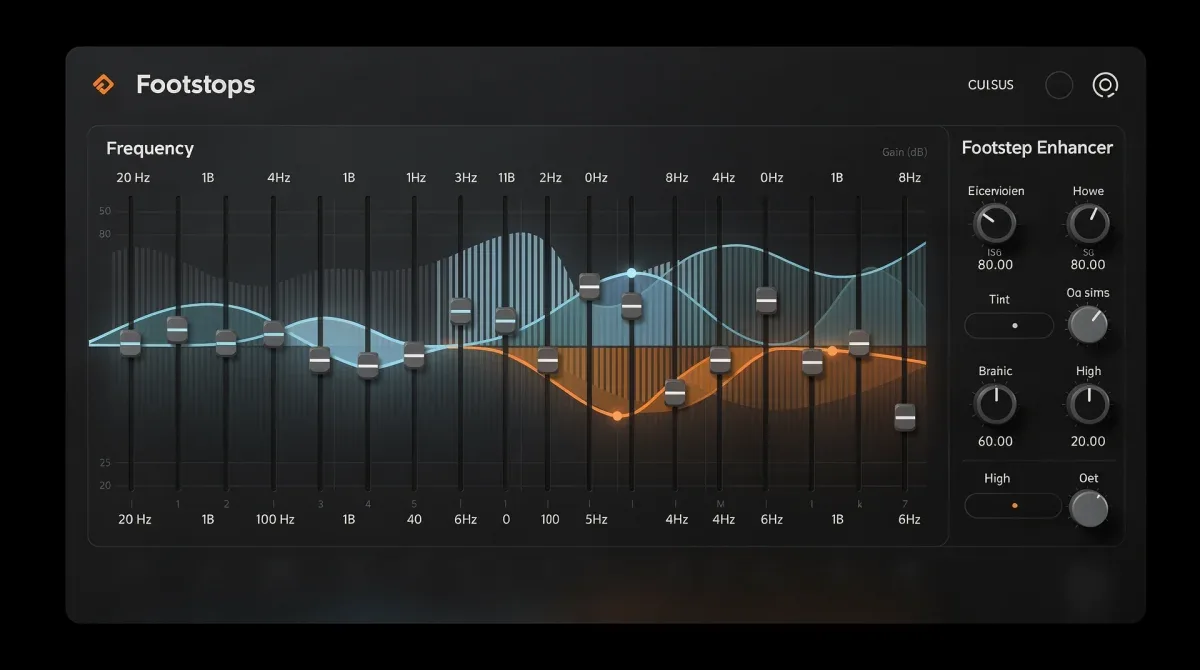
The goal of using an equalizer is to boost the specific frequencies where footstep sounds reside while potentially lowering frequencies associated with less critical game noises. This selective amplification makes footsteps pop out from the overall sound mix, making them easier to detect and distinguish.
Identifying footstep frequencies
Footstep sounds in CS2 generally occupy a specific range of frequencies. While this can vary slightly depending on the surface (concrete, wood, carpet), they typically fall within the low-mid to mid-range frequencies. Experimentation is key here, but a good starting point is to focus on the 1 kHz to 4 kHz range.
Using an equalizer, you can create a slight boost in this frequency band. Be cautious not to overdo it, as excessive boosting can lead to distortion or an unnatural sound profile, which can cause ear fatigue during long gaming sessions. Small, incremental adjustments are often more effective than drastic changes.
Recommended equalizer profiles for CS2
While specific equalizer settings can be highly personal and depend on your headset's sound signature, here is a general approach to create a profile aimed at enhancing footsteps:
- Low Frequencies (below 250 Hz): Slightly reduce these to cut down on bass rumble from explosions or distant gunfire, which can mask footsteps.
- Low-Mids (250 Hz - 1 kHz): Maintain or slightly boost. This range can contain some body to footsteps.
- Mids (1 kHz - 4 kHz): This is your primary target. Apply a moderate boost (e.g., +3dB to +6dB) in this region. This will emphasize the 'clack' or 'thump' of footsteps.
- High-Mids (4 kHz - 8 kHz): Keep neutral or slightly boost if you find certain 'shuffling' sounds are important.
- High Frequencies (above 8 kHz): Slightly reduce to minimize harshness from gunshots or high-pitched environmental sounds, which can also contribute to ear fatigue.
Remember to save your custom equalizer profile once you are satisfied. Many headsets allow you to switch profiles on the fly, making it easy to revert if a particular setting is not working for you. The goal is to create a sound profile that makes footsteps distinct and easily identifiable without sacrificing overall audio quality or causing discomfort.
Leveraging external equalizers provides a level of granular control that in-game settings often lack. By focusing on the precise frequencies associated with footsteps, you can carve out a clearer sound path, making those crucial enemy movements unmistakable.
Testing and Fine-Tuning Your Audio Setup
Calibration is not a one-and-done process; it requires rigorous testing and continuous fine-tuning. The best way to evaluate your changes is through practical application within Counter-Strike 2. Jump into deathmatch servers, practice maps, or even competitive matches to assess the impact of your adjustments in real-time scenarios.
Pay close attention to how clearly you can hear footsteps from different distances and directions. Are they distinct from other game sounds? Can you accurately judge an enemy's proximity? These are the questions that will guide your further adjustments. Do not be afraid to revert changes if they do not yield the desired improvement.
Utilizing practice maps for audio testing
Several community-made practice maps are excellent for testing audio. Maps designed for aim training or movement often feature areas where you can simulate enemy footsteps or have bots move around. This controlled environment allows you to isolate audio cues and test different settings without the pressure of a live match.
Load up a map like 'aim_botz' or 'recoil_master' and enable bots. Experiment with their movement paths, listening intently to their footsteps. Adjust your equalizer or in-game settings slightly, then re-test. This iterative process is crucial for dialing in the perfect audio profile for your specific hardware and preferences.
Seeking feedback and making incremental adjustments
While audio preference is subjective, seeking feedback from teammates can sometimes offer valuable insights. If your teammates consistently hear something you miss, it might indicate a further need for adjustment. However, ultimately, the calibration should feel right for you and your ears.
Make small, incremental changes. Drastic adjustments can make it difficult to identify which specific change had what effect. Adjust one setting at a time, test it, and then move on. This methodical approach ensures that each modification contributes positively to your goal of boosting footstep clarity. Remember, the 25% boost is a target, and consistent effort will lead to noticeable improvements in your competitive performance.
The testing phase is where all your theoretical knowledge turns into practical advantage. By methodically evaluating your audio setup in realistic scenarios, you ensure that your calibration efforts translate directly into clearer, more actionable sound information during gameplay.
Advanced Tips for Competitive Audio Advantage
Beyond the core calibration steps, several advanced tips can further enhance your competitive audio advantage in Counter-Strike 2. These often involve optimizing your hardware, understanding network effects on sound, and developing focused listening habits during gameplay.
While the previous steps lay a solid foundation, these advanced considerations can help you squeeze every last drop of performance from your audio setup, ensuring you are always one step ahead of your opponents.
Headset choice and sound card considerations
Your choice of headset plays a significant role in audio quality. While expensive headsets are not strictly necessary, a good quality stereo gaming headset with a clear, balanced sound profile is crucial. Avoid headsets with overly emphasized bass, as this can muddy critical mid-range frequencies where footsteps reside. Many competitive players prefer open-back headphones for their wider soundstage and more natural sound, though closed-back offers better noise isolation.
An external DAC (Digital-to-Analog Converter) and AMP (Amplifier) can also significantly improve audio quality by bypassing your motherboard's potentially noisy onboard audio. These devices provide cleaner power and conversion, resulting in a clearer, more detailed sound presentation. While an investment, a dedicated sound card or external DAC/AMP can be a game-changer for serious audiophiles and competitive gamers.
Minimizing background noise and distractions
Even the best audio setup can be undermined by environmental noise. Playing in a quiet environment is paramount. Close windows, silence your phone, and inform housemates you are in a competitive match. Noise-canceling headphones can also help isolate you from external distractions, allowing you to focus solely on in-game sounds.
Consider using a high-quality microphone with noise suppression if you communicate with teammates. A clear mic ensures your calls are heard without adding unnecessary background noise that could interfere with your teammates' audio perception. Every element that contributes to a focused auditory experience is worth optimizing.
- Quiet Environment: Essential for unhindered sound perception.
- Noise-Canceling Headphones: An effective way to block out external distractions.
- Microphone Quality: Ensures clear communication without adding noise.
These advanced considerations go beyond software tweaks, delving into hardware and environmental factors that collectively contribute to an optimal listening experience. By addressing these, you create an ecosystem where your calibrated audio settings can truly shine, giving you the clearest possible picture of the battlefield.
By implementing these advanced tips, you are not just calibrating software; you are creating an entire optimized environment for competitive audio. This holistic approach ensures that every sound cue is delivered with maximum clarity and precision, translating directly into better in-game performance.
Maintaining and Adapting Your Audio Setup
The gaming landscape, much like technology, is constantly evolving. Game updates, driver revisions, and even hardware changes can all impact your meticulously calibrated audio setup. Therefore, maintenance and adaptability are key to sustaining your competitive edge in Counter-Strike 2.
It is not enough to set it and forget it; regular checks and willingness to adjust are crucial. This proactive approach ensures your audio remains optimized, regardless of external changes, keeping your footstep clarity at its peak.
Regular checks and driver updates
Periodically revisit your audio settings, both in-game and system-level, especially after major CS2 updates or Windows patches. Developers sometimes tweak audio engines, and operating system updates can reset or modify sound preferences. A quick check ensures everything remains configured as you intended.
Keep your audio drivers (for your headset, sound card, or motherboard audio) up to date. Manufacturers often release updates that improve performance, fix bugs, or add new features. Outdated drivers can lead to compatibility issues or suboptimal audio processing, potentially degrading sound clarity. Regularly check the manufacturer's website for the latest versions.
Adapting to game updates and new content
Counter-Strike 2 is a live service game, meaning it receives frequent updates. These updates can sometimes include changes to audio mixing or the way certain sounds are rendered. If you notice a sudden shift in sound clarity or perception after an update, it is a good indicator that some recalibration might be necessary.
Be prepared to re-evaluate your equalizer settings or even in-game volumes if new weapons, maps, or sound effects are introduced. The goal is to maintain that crucial step-by-step audio calibration to boost footstep audio clarity by 25% in Counter-Strike 2, adapting your setup to the game's current state rather than relying on outdated configurations. Flexibility in your approach ensures sustained optimal performance.
- Post-Update Review: Check settings after every major game or system update.
- Driver Maintenance: Keep all audio-related drivers current.
- Flexibility: Be ready to adapt equalizer profiles or volumes for new game content.
By staying vigilant and proactive in maintaining your audio setup, you ensure that your competitive advantage remains consistent. This ongoing process of checking, updating, and adapting is fundamental to long-term success in a dynamic game like Counter-Strike 2.
The commitment to ongoing maintenance and adaptation ensures that your audio calibration remains effective against the backdrop of continuous game and system evolution. This dedication guarantees that your ability to hear crucial footsteps stays sharp, round after round.
| Key Calibration Step | Benefit for Footstep Clarity |
|---|---|
| Disable Windows Enhancements | Removes artificial processing that can muffle critical sounds. |
| Enable HRTF in CS2 | Provides precise 3D sound spatialization for accurate enemy location. |
| Equalizer Mid-Range Boost | Amplifies footstep frequencies (1-4 kHz) to make them more distinct. |
| Regular Testing & Fine-Tuning | Ensures optimal performance across game updates and personal preference shifts. |
Frequently Asked Questions About CS2 Audio Calibration
What is HRTF and why is it important in CS2?▼HRTF (Head-Related Transfer Function) is a technology that enhances 3D audio perception, making sounds seem like they are coming from specific directions and distances. In CS2, it is crucial for accurately pinpointing enemy positions based on sound cues like footsteps, giving players a significant tactical advantage in competitive play.
Should I use Windows sound enhancements for CS2?▼No, it is generally recommended to disable all Windows sound enhancements. Features like virtual surround, bass boost, or loudness equalization can introduce latency, distort critical sound cues, and make it harder to distinguish important in-game sounds, especially footsteps, hindering competitive performance.
What frequency range should I boost on an equalizer for footsteps?▼For enhancing footstep clarity, focus on boosting the low-mid to mid-range frequencies, typically between 1 kHz and 4 kHz. This range usually contains the core sounds of footsteps. Be cautious not to over-boost, as it can lead to distortion or an unnatural sound profile, causing ear fatigue.
Can my headset choice impact footstep clarity?▼Absolutely. A good quality stereo gaming headset with a balanced sound profile is crucial. Avoid headsets with overly strong bass, which can mask mid-range footstep sounds. Some competitive players prefer open-back headphones for a wider soundstage, while others prioritize noise isolation from closed-back designs.
How often should I check my CS2 audio settings?▼It is advisable to check your audio settings periodically, especially after major CS2 game updates or Windows operating system patches. These updates can sometimes reset or alter audio configurations. Keeping your audio drivers updated is also important to maintain optimal performance and clarity.
Conclusion
Achieving a significant boost in footstep audio clarity within Counter-Strike 2 is a tangible and achievable goal for any serious player. By meticulously following a step-by-step audio calibration to boost footstep audio clarity by 25% in Counter-Strike 2, from system-level adjustments to in-game settings and external equalizer tweaks, you gain a powerful competitive advantage. The ability to hear and accurately locate enemies sooner is invaluable, transforming your situational awareness and decision-making. Remember, audio calibration is an ongoing process of testing, refining, and adapting, ensuring your ears remain your most potent weapon on the battlefield.
