Optimize Windows 11 for Valorant: 14% Input Lag Reduction
Achieving a 14% input lag reduction in competitive Valorant matches on Windows 11 requires precise system configurations, driver updates, and network optimizations for enhanced responsiveness.
Are you looking to gain a significant edge in your competitive Valorant matches? Understanding how to optimize Windows 11 latency for a 14% input lag reduction in competitive Valorant matches is not just a technical tweak; it's a game-changer. This guide will walk you through the essential steps to make your system more responsive, ensuring every click and movement translates instantly into the game.
Understanding input lag and its impact on Valorant
Input lag, in simple terms, is the delay between your action (like clicking your mouse or pressing a key) and that action appearing on your screen. In fast-paced tactical shooters like Valorant, even milliseconds of delay can be the difference between a headshot and being eliminated. Reducing input lag means your reactions are more accurately reflected in-game, giving you a competitive advantage.
This delay isn't solely about your internet connection, though that plays a role. It encompasses various factors within your PC, from operating system processes to display refresh rates. Optimizing these elements systematically can yield substantial improvements, making your gameplay feel smoother and more immediate. Many professional players meticulously fine-tune their setups to minimize any potential bottlenecks, knowing that every fraction of a second counts.
The chain of command: from input to display
- Hardware Input: Your mouse and keyboard send signals to your PC.
- Operating System Processing: Windows 11 processes these signals, communicating with drivers and the game.
- Game Engine: Valorant's engine interprets the input and renders the next frame.
- GPU Rendering: Your graphics card processes the visual data.
- Display Output: The monitor displays the rendered frame.
Each step in this chain introduces a tiny delay. Our goal is to minimize these delays at every possible point, focusing particularly on the Windows 11 operating system's role. By understanding where these delays occur, we can target our optimizations more effectively, leading to a noticeable reduction in overall input lag.
Ultimately, a lower input lag translates directly to a more fluid and responsive gaming experience. This isn't just about comfort; it's about performance. Players with lower input lag can react faster to enemy movements, execute precise flicks, and generally feel more in control of their agent, directly influencing their kill-to-death ratio and overall match performance.
Core Windows 11 settings for performance
Windows 11, while visually appealing, comes with several background processes and settings that can inadvertently introduce latency. To achieve a 14% input lag reduction, we must meticulously adjust these settings, prioritizing raw performance over aesthetic features. This foundational step is crucial before diving into game-specific optimizations.
One of the first areas to tackle is power management. By default, Windows 11 often uses a balanced power plan, which can throttle your CPU and GPU to save energy. For competitive gaming, this is counterproductive. We need to ensure your system is always operating at its maximum potential, delivering consistent power to critical components.
Adjusting power options for maximum performance
To access these settings, search for 'Power & sleep settings' in the Windows search bar, then click 'Additional power settings.' From there, select 'High performance' or 'Ultimate Performance' if available. If 'Ultimate Performance' isn't visible, you can often enable it via a simple PowerShell command. This ensures your CPU and GPU are not held back by power-saving measures, providing consistent clock speeds.
- High Performance: Prioritizes performance over energy efficiency, keeping your CPU active.
- Ultimate Performance: Maximizes hardware performance by eliminating micro-latencies associated with fine-grained power management techniques.
- Custom Plan: You can create a custom plan, ensuring 'Minimum processor state' is set to 100%.
Another critical area is background applications. Many apps run silently in the background, consuming CPU cycles and memory that could be dedicated to Valorant. Disabling these unnecessary processes frees up resources, leading to a more focused and responsive gaming environment. This includes apps from the Microsoft Store as well as traditional desktop applications.
Finally, ensure your display settings are optimized. Verify that your monitor is running at its highest refresh rate (e.g., 144Hz, 240Hz) and that G-Sync or FreeSync are properly configured if your monitor and GPU support them. Incorrect display settings can introduce significant visual lag, even if your system is performing well internally.
Optimizing graphics drivers and display settings
Your graphics drivers are the bridge between your operating system and your GPU. Outdated or improperly configured drivers can introduce substantial latency and hinder performance. For a competitive edge in Valorant, it’s paramount to keep these drivers updated and to fine-tune your display settings for minimal delay.
Always download the latest stable drivers directly from your GPU manufacturer’s website (NVIDIA, AMD, or Intel). Avoid relying solely on Windows Update for driver installations, as these often lag behind the latest versions or might not include all the necessary performance optimizations. A clean installation is often recommended to prevent conflicts with older driver files.
Driver installation and settings for NVIDIA
- Clean Installation: Use Display Driver Uninstaller (DDU) in Safe Mode to completely remove old drivers before installing new ones.
- NVIDIA Control Panel Settings:
- Manage 3D settings > Power management mode: Prefer maximum performance.
- Low Latency Mode: Set to Ultra.
- Vertical sync: Off (unless you experience severe screen tearing and prefer V-Sync at the cost of latency).
- Texture filtering – Quality: High performance.
For AMD users, similar settings exist within the Radeon Software. Look for options like 'Radeon Anti-Lag' or 'Enhanced Sync' and ensure your power settings are geared towards performance. Disabling any form of V-Sync is generally recommended in competitive titles unless screen tearing becomes unbearable, as V-Sync inherently introduces input lag.
Beyond driver settings, your in-game display configuration for Valorant is equally important. Ensure your game is running in full-screen exclusive mode, not borderless windowed. This gives the game direct control over your display, bypassing some Windows compositing processes that can add latency. Match your in-game resolution to your monitor's native resolution for optimal clarity and performance.
Lastly, check your monitor's OSD (On-Screen Display) settings. Many gaming monitors have specific 'Response Time' or 'Overdrive' settings. Experiment with these to find the sweet spot that reduces ghosting without introducing excessive inverse ghosting. Also, ensure any 'Game Mode' features on your monitor are enabled, as these often bypass post-processing to reduce display lag.

Windows 11 gaming mode and background processes
Windows 11 includes a dedicated 'Game Mode' designed to optimize your system for gaming. While its effectiveness can vary, properly configuring it and managing background processes can contribute significantly to reducing input lag in Valorant. This involves telling Windows to prioritize your game and minimize distractions.
To enable Game Mode, go to 'Settings' > 'Gaming' > 'Game Mode' and toggle it on. While Game Mode is active, Windows will attempt to optimize your PC for gaming by suspending background tasks and allocating resources more efficiently. However, merely enabling it isn't always enough; we need to ensure other background elements are also controlled.
Managing background apps and notifications
Even with Game Mode on, certain applications can still consume valuable resources. It's crucial to manually review and disable unnecessary background apps. Go to 'Settings' > 'Apps' > 'Apps & features' and then click on each app to check its 'Advanced options.' Here, you can set 'Let this app run in background' to 'Never.'
- Disable startup apps: Open Task Manager (Ctrl+Shift+Esc), go to the 'Startup' tab, and disable any non-essential programs.
- Turn off notifications: Go to 'Settings' > 'System' > 'Notifications' and disable notifications from apps or set 'Do Not Disturb' mode for gaming sessions.
- Stop unnecessary services:1 Use the Services Manager (services.msc) to disable services you don't need, but proceed with caution as disabling critical services can cause system instability.
Furthermore, consider disabling visual effects that consume GPU resources without offering significant benefits to competitive gaming. Search for 'Adjust the appearance and performance of Windows' and select 'Adjust for best performance.' This will disable fancy animations and shadows, freeing up GPU cycles for Valorant.
By systematically reducing the number of processes competing for your system's resources, you ensure that Valorant has priority. This dedicated resource allocation is fundamental to achieving the desired input lag reduction, making your system feel more responsive and directly impacting your in-game performance.
Network optimization for competitive play
While often associated with ping (network latency), network settings also play a role in overall input lag, especially in an online game like Valorant. Optimizing your network can stabilize your connection, reduce packet loss, and ensure your game data travels as efficiently as possible.
First and foremost, a wired Ethernet connection is always superior to Wi-Fi for competitive gaming. Wi-Fi introduces inherent latency and is susceptible to interference, leading to inconsistent performance. If possible, connect your PC directly to your router using a high-quality Ethernet cable.
Prioritizing network traffic for Valorant
Quality of Service (QoS) settings on your router can prioritize Valorant's network traffic over other devices or applications on your network. This ensures that even if someone else is streaming or downloading, your game data takes precedence, minimizing potential lag spikes. Consult your router's manual for instructions on configuring QoS.
- Update network drivers: Just like graphics drivers, keep your network adapter drivers updated for optimal performance and stability.
- Disable network-intensive background apps: Ensure no other applications are downloading updates or streaming content during your gaming sessions.
- DNS optimization: Consider using public DNS servers like Google DNS (8.8.8.8, 8.8.4.4) or Cloudflare DNS (1.1.1.1, 1.0.0.1) for potentially faster name resolution.
Another often overlooked aspect is your Windows Firewall. While essential for security, sometimes it can interfere with game connections. Ensure Valorant is allowed through the firewall, or temporarily disable it for testing purposes if you suspect it's causing issues (remember to re-enable it afterward for security).
Finally, avoid using VPNs for competitive gaming unless absolutely necessary. While VPNs can sometimes route you through a faster server for certain games, they generally add an extra layer of latency due to encryption and server hops. For Valorant, a direct connection is almost always the best option for minimizing lag.
Advanced Windows 11 tweaks for ultra-low latency
Beyond the common optimizations, several advanced Windows 11 tweaks can further shave off milliseconds of input lag, pushing you closer to that 14% reduction target. These modifications often involve registry edits or system configurations that require a bit more technical comfort, so proceed with caution and always back up your system before making significant changes.
One such tweak involves disabling 'Nagle's algorithm,' which can sometimes bundle small packets of data, delaying their transmission. While beneficial for network efficiency in some scenarios, it can introduce latency in real-time applications like Valorant. Disabling it forces immediate packet transmission, potentially reducing network-related input lag.
Disabling Nagle's algorithm via registry editor
To disable Nagle's algorithm, you'll need to edit the Windows Registry. Search for 'regedit' in the Windows search bar and navigate to HKEY_LOCAL_MACHINE\SYSTEM\CurrentControlSet\Services\Tcpip\Parameters\Interfaces. Within each subfolder (representing your network adapters), look for your IP address. Create two new DWORD (32-bit) values: TcpNoDelay and TcpAckFrequency, setting both to 1. Restart your PC for changes to take effect.
- Warning: Incorrect registry edits can cause system instability. Proceed with caution.
- Purpose: Forces immediate sending of data packets, bypassing potential delays.
- Impact: Can reduce network-induced latency, especially on high-ping connections.
Another advanced optimization involves disabling 'Message-Signaled Interrupts' (MSI) for certain devices, particularly your GPU or network adapter. While MSI is generally an improvement over older interrupt methods, some older hardware or specific driver implementations might benefit from reverting to line-based interrupts. This is a highly specific tweak and should only be attempted if you've exhausted other options and are comfortable with Device Manager modifications.
Finally, consider using specialized tools designed for system optimization, such as custom debloaters for Windows 11. These tools can remove unnecessary pre-installed applications and services that are difficult to disable manually. However, always research and use reputable tools to avoid installing malware or inadvertently damaging your operating system. These advanced tweaks collectively aim to strip down any remaining inefficiencies in Windows 11, dedicating maximum resources and minimizing delays for Valorant.
Testing and fine-tuning your optimizations
After implementing all the recommended optimizations, the crucial final step is to test and fine-tune your setup. Without proper testing, you won't know if your changes have genuinely led to a 14% input lag reduction or if further adjustments are needed. This phase is about empirical validation and personal preference.
The most straightforward way to test is to simply play Valorant. Pay close attention to how the game feels. Do your movements feel more immediate? Are your shots landing more consistently? While subjective, your personal experience is a valuable indicator. For more objective measurements, utilize in-game performance metrics.
Utilizing in-game metrics and external tools
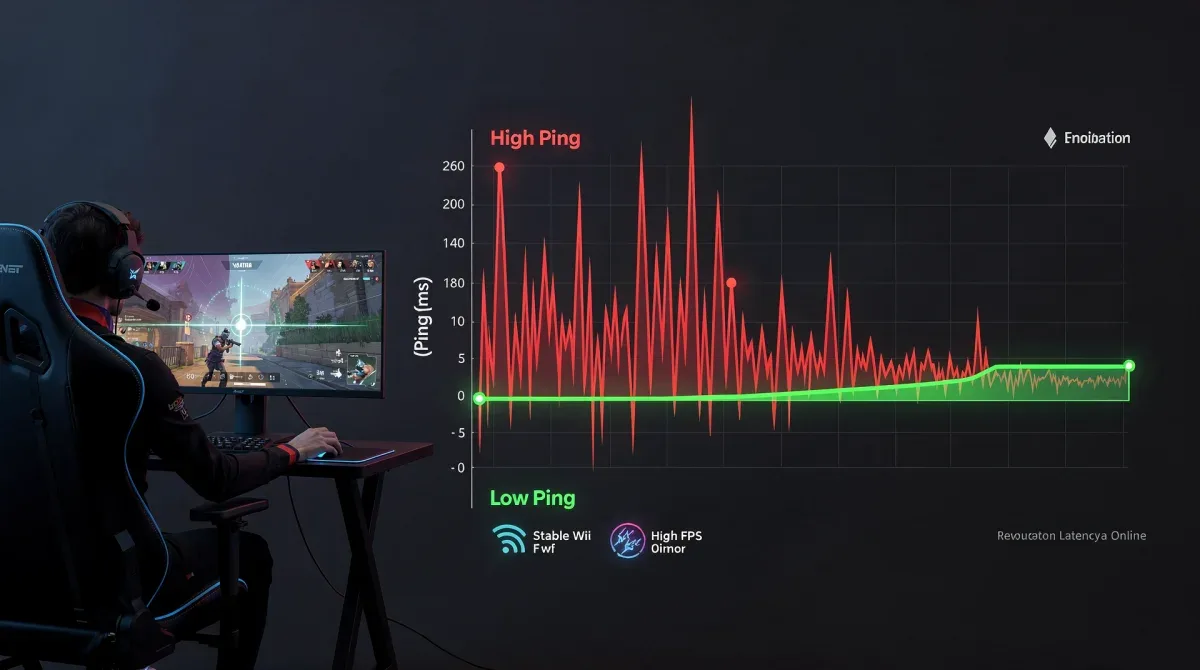
Valorant has an excellent built-in performance overlay. Enable 'Network RTT (Ping)' and 'Client FPS' to monitor your connection and frame rates. Look for stable FPS and consistent, low ping. Fluctuations can indicate underlying issues that still need addressing. You can also monitor 'Frame Time' graphs for smoothness.
- Practice Range: Use Valorant's practice range to perform controlled tests. Focus on flick shots and quick movements.
- Third-party tools: Tools like LatencyMon can help identify DPC (Deferred Procedure Call) latency issues, which might indicate problematic drivers or hardware.
- Before and After: It's helpful to have a baseline measurement before optimizations to accurately gauge the improvement.
Don't be afraid to experiment with one setting at a time. If you make too many changes at once, it becomes difficult to pinpoint which specific optimization yielded the most significant benefit or, conversely, introduced a problem. Revert changes if they negatively impact your performance or cause instability.
Your goal is to find the optimal balance between performance and system stability. While pushing for every last millisecond of reduction, ensure your system remains reliable. Regular testing and iterative adjustments will help you maintain peak performance, consistently providing that competitive edge in Valorant matches.
| Key Optimization | Brief Description |
|---|---|
| Power Plan | Set to 'High Performance' or 'Ultimate' for consistent CPU/GPU power. |
| Graphics Drivers | Install latest drivers with 'Prefer maximum performance' and 'Low Latency Mode: Ultra'. |
| Background Apps | Disable unnecessary background processes and startup applications. |
| Network Connection | Use wired Ethernet, update network drivers, and consider QoS settings. |
Frequently asked questions about Windows 11 and Valorant latency
What is input lag, and why is it critical for Valorant?▼Input lag is the delay between your physical action and its on-screen representation. In Valorant, where split-second reactions determine outcomes, minimizing input lag ensures your actions register instantly, providing a crucial competitive advantage in clutch situations and aiming precision.
Can Windows 11 Game Mode truly reduce input lag?▼While Game Mode aims to optimize system resources by prioritizing the game and suspending background tasks, its direct impact on input lag can be subtle. It's most effective when combined with other manual optimizations, ensuring Windows dedicates maximum resources to Valorant for smoother performance.
Is a wired Ethernet connection always better than Wi-Fi for Valorant?▼Yes, a wired Ethernet connection is almost always superior for competitive gaming. Wi-Fi introduces higher and more inconsistent latency due to wireless interference and signal degradation. An Ethernet connection provides a stable, lower-latency pathway for game data, crucial for reducing network-related input lag.
Should I disable V-Sync for competitive Valorant?▼Generally, yes. V-Sync synchronizes your game's frame rate with your monitor's refresh rate to prevent screen tearing, but it inherently introduces input lag. For competitive play, most gamers prefer to disable V-Sync to prioritize responsiveness, even if it means occasional screen tearing.
What is Nagle's algorithm, and why might I disable it?▼Nagle's algorithm bundles small data packets to improve network efficiency, but this can delay real-time data transmission. Disabling it forces immediate packet sending, potentially reducing network latency in online games like Valorant. It's an advanced tweak that can offer marginal gains for some users.
Conclusion
Achieving a 14% input lag reduction in competitive Valorant matches on Windows 11 is an attainable goal through a combination of meticulous system, driver, and network optimizations. By carefully following the steps outlined in this guide, from adjusting power settings and updating graphics drivers to managing background processes and fine-tuning network configurations, players can significantly enhance their system's responsiveness. These efforts culminate in a smoother, more immediate gaming experience, directly translating into improved in-game performance and a sharper competitive edge. Consistent testing and iterative adjustments are key to maintaining peak optimization and dominating the Valorant battlefield.
